
In the era of digital technologies, where data rules the world, tools for processing it have become an integral part of everyday work. Google Sheets is a powerful online service for creating and editing electronic documents, replacing the familiar Excel.
In 2026, this tool evolved thanks to the integration of the artificial intelligence Gemini, which allows the creation of complex formulas, the analysis of patterns, and the generation of visuals based on simple requests. If you are a beginner in working with data or looking for ways to optimize processes in Excel, this article will help you understand how to create tables online, using basic and advanced functions. We will discuss the steps for creating, examples of application, and recommendations so that you can work as efficiently as possible with this free Google application.
Google Sheets is perfect for those who value accessibility and plan to organize collaborative work. Unlike traditional Microsoft Excel, everything here happens online, without the need to install software. You can open files from any device, edit them in real-time with colleagues, and use special extensions for automation.
For marketers, managers, and freelancers, this is an opportunity to quickly process information, build reports, and analyze metrics. If you manage social media, then Google along with Postmypost will assist in content planning.
What is Google Sheets and why choose it in 2026
Google Sheets, or Google Tables, is an online application for working with electronic tables, part of the Google Workspace ecosystem. It allows you to create, edit, and share documents containing data, formulas, and charts, just like Excel.
In 2026, the service was enhanced with new AI-based features, such as Gemini, which simplifies table creation: just enter a request like "create a table for expense tracking," and the system will generate a ready-made structure. This makes Google Sheets more accessible for beginners (which cannot be said for Excel), while experienced users appreciate the integration with BigQuery for processing large volumes of data.

Compared to Excel, Google Sheets wins in online access: there is no risk of losing files, as everything is automatically saved in the cloud. Microsoft Excel requires installation and is suitable for offline work, but in 2026, Google offers better tools for collaborative editing—up to 100 people can work simultaneously.
Additionally, Sheets is free for personal use, making it ideal for small businesses (while Excel requires a paid subscription). If you are looking for a way to create tables online without unnecessary costs, this is the optimal choice. For those for whom online tables are part of their SMM work, we recommend checking out the article AI tools for SMM in 2026: what really works and what wastes time, where we discuss the integration of AI tools for content planning on social networks.

One of the key features is offline mode: through a Chrome extension or mobile app, you can edit files without the internet, and changes will sync once you reconnect, which is not possible in traditional Excel. In 2026, functions like SHEET and SHEETS were added, making navigation through complex online projects easier — helping manage multiple sheets in one document.
How to create a table in Google Sheets: step-by-step guide
Creating a table online in Google Sheets is easier than it seems—no more complicated than in Excel. First, you need to log into your Google account—if you don’t have one, register for free at gmail.com. This will give you access to all Google services, including Sheets. Go to sheets.google.com or through Google Drive (drive.google.com), where you can create new documents.
-
Log into your account. Logging in will require you to enter your email and password. If you are already logged in on your browser, the system will automatically redirect you.
-
On the main page, click the "+" icon, just like in Excel, to create a blank table. Or choose a template from the gallery—like "Budget" or "Project Plan." This allows you to create ready-made structures without starting from scratch.
 AI-ассистент отвечает в комментариях и сообщениях так, будто это живой менеджерБыстро, естественно, без пропусковУзнать подробнее
 -
Rename the file by clicking on "New Spreadsheet" in the upper left corner. Enter a name that reflects the content, for example, "Sales Report 2026."
-
Start entering data, just like in Excel. Cells are designated by letters (columns) and numbers (rows), such as A1 or B5. Use the toolbar for formatting, similar to the Excel interface: change fonts, add borders or colors.
-
You don’t need to save changes, as everything happens automatically online (you won’t have to recreate anything later). For collaborative work, click "Share Settings" in the upper right corner and share the link.
This process takes minutes, and you can already work with data. In 2026, with the help of Gemini, creating a table became even easier: simply enter a request in the sidebar, and the AI will generate formulas or charts. If you are importing from Excel, just upload the file via "File" > "Import." We recommend beginners start by creating simple tasks, like expense tracking, to get familiar with the interface.
Basic functions of Google Sheets for effective work
Having figured out how to create Google tables online, let’s move on to the basics of working with it. Google Sheets allows you to manipulate data through simple tools, just like Excel.
-
Add rows and columns online. Select a cell, right-click and choose "Insert Row Above" or "Column to the Left." To delete, do the same, selecting "Delete Row."
-
Formatting data. In the "Format" menu, select the type — number, date, currency. This helps avoid errors in calculations. Sorting and filtering online simplifies analysis: in "Data" > "Sort Range," you can arrange by alphabetical order or values. Filters (funnel icon in the header) allow you to hide unnecessary rows, showing only relevant ones.
-
Conditional formatting online. In "Format" > "Conditional Formatting," set rules, for example, color cells red if the value is below 100. This visualizes problems in the data. Don’t forget about freezing: "View" > "Freeze" — when scrolling, Google Sheets will keep the header in place.
Example: create a table for tracking sales. In column A — products, B — prices, C — quantities. In D, enter the formula =B2*C2 for total calculation, drag down — and it’s done. Such basic steps allow you to create functional documents quickly.

Advanced features: formulas, charts, and integrations
Google Sheets in 2026 offers advanced features for deep analysis, unlike Excel. Formulas start with "=", for example =SUM(A1:A10) for summing. With Gemini, creating complex calculations became easier: the AI suggests options like =AI("calculate average check"). Functions like VLOOKUP search for data in other tables, while IF allows creating conditions.
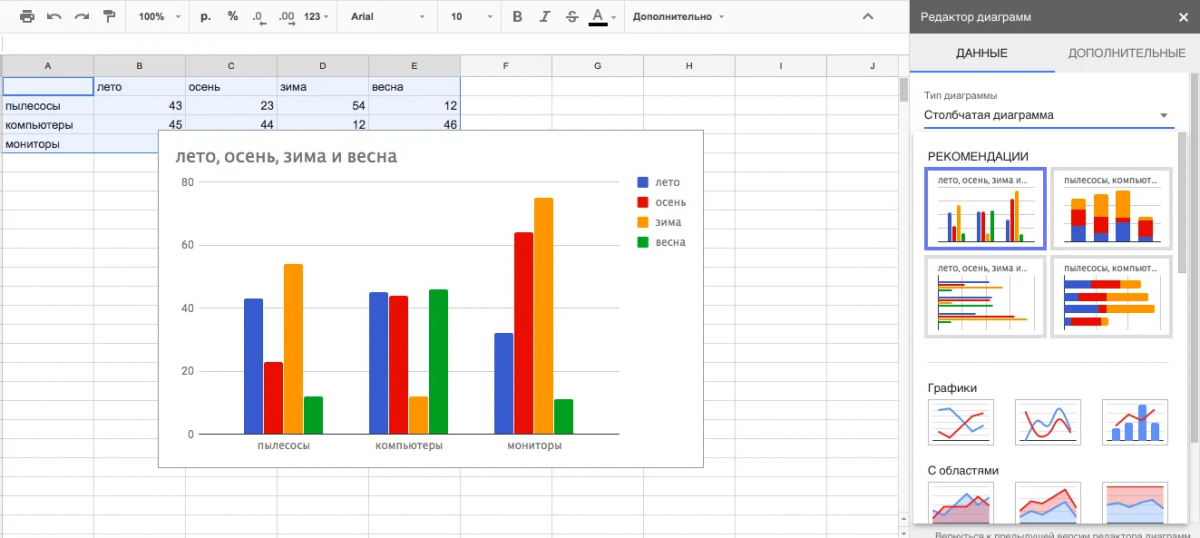
Charts visualize information. In "Insert" > "Chart," choose a type — bar or pie chart. Gemini can create them automatically upon request. Pivot tables (in "Data" > "Pivot Table") group data, showing totals by categories.
Online integrations can create new opportunities. Connect Google Forms to collect responses directly in Sheets or BigQuery for large data. For marketers, the connection with Google Analytics is useful—you can export traffic metrics. In the Postmypost service, which simplifies social media management, you can use Google Sheets to export content plans.
For example, a Google table with posts, dates, and hashtags can be imported into Postmypost for auto-publishing (or you can work directly in Postmypost, which is much simpler and faster). This will save time and increase efficiency. Read more on the website.

Macros automate routine tasks. In "Extensions" > "Macros," record a sequence of actions and run it with one click. In 2026, functions for managing sheets were added, such as counting the number of sheets in a file.
Tips and recommendations for working with Google Sheets
To not only create quickly but also make the most of Google Sheets, follow proven recommendations.
-
Organize data logically, use separate sheets for different sets, renaming them. Protect important ranges in "Data" > "Protected Sheets" to avoid accidental edits.
-
Keyboard shortcuts speed up work: Ctrl+C for copying, Ctrl+Z for undoing. If the Google Sheet is large, apply filters and slices — this will allow you to quickly find information. Regularly check the change history in the upper right corner to track edits by colleagues and avoid creating unnecessary chaos.
-
Avoid common mistakes: fix references in formulas with $ (like A$1) so they don’t change when copied. For importing from Excel, check formula compatibility. If the data is large, use the "Connected Tables" mode for integration with external sources.
In 2026, Sheets emphasizes AI: experiment with Gemini for idea generation. For SMM specialists, we recommend additionally exploring SMM Trends 2026: checklist + instructions on how to implement them into your strategy today.

In conclusion, Google Sheets in 2026 is not just a table, but a full-fledged tool for working with data online. With Sheets, you can create complex projects, analyze information, and collaborate with your team. If you manage social media, use Postmypost for automation and beyond. Read more here.